Setup
Ten minutes, no C++.
1. Enable the plugin
Edit > Plugins, find VT Atlas, tick it, restart the editor.
The plugin brings its own modules and depends on no other user-made plugin. It uses Gameplay Tags, which ship with the engine and are enabled automatically.
2. Name your regions
Project Settings > Project > GameplayTags, and add the regions your game has. Use dots for nesting:
Castle
Castle.Keep
Castle.Keep.Hall
You are naming places, not configuring the plugin. VT Atlas ships no region tags of its own and never
requires a particular shape of name. If your game calls them Zone.Forest.Deep, use that.
If you want tidier authoring, set Region Root Tag in Project Settings > Plugins > VT Atlas. Two things change. The tag pickers on a volume, a definition and a listener open under the root, so the branch you want is the one in front of you. And data validation reports an error for a volume or a definition tagged outside the root, which catches the tag picked from the wrong branch at three in the morning.
3. Place a volume
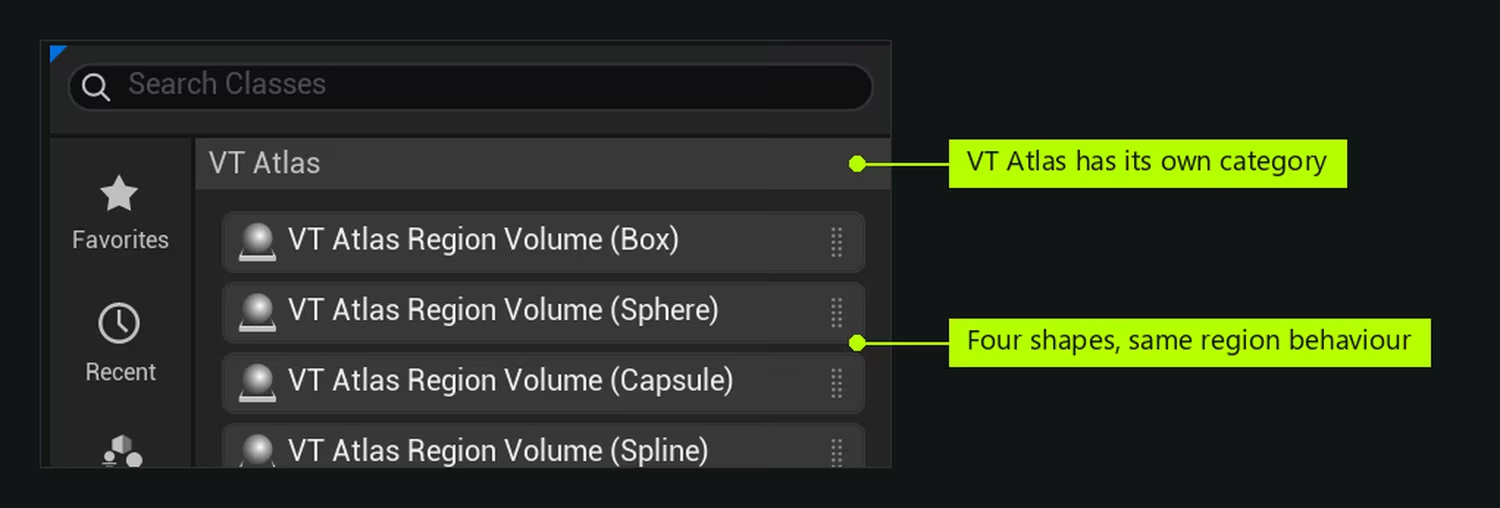
Open the Place Actors panel (Window > Place Actors) and choose the VT Atlas category. It holds the four region volumes. Drag a VT Atlas Region Volume (Box) into the level and size it like any trigger.
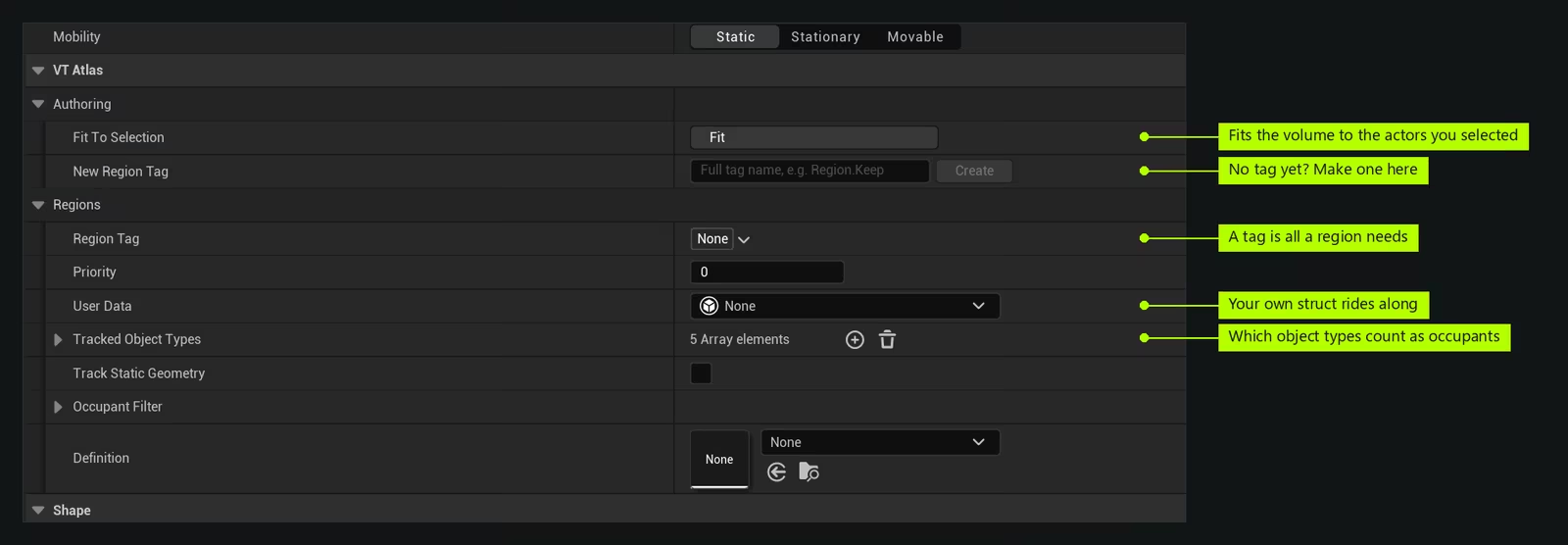
Set its Region Tag to one of your tags. That is the minimum: a volume with a tag is a region.
If the tag does not exist yet, make it from the volume itself. Under VT Atlas > Authoring, type a name into the "New Region Tag" row and press Create: the tag is added to the project and given to the volume, as one undo step. With a region root set, type only the part that goes under the root.
A volume you have just dropped stays quiet in the editor until it can work: no error for the missing tag, and none for a spline with nothing drawn yet. It registers the moment it has both. In a running game the same volume is refused out loud, because there it is a mistake rather than work in progress.
Once the volume has a tag, the same row offers "Add Child Region" instead. Type a name and press Add, and a region nested inside this one is made as a new box volume in the same level, half the size and at the centre, ready to resize.
Everything below the tag has a working default. User Data is where your own struct goes, and Tracked Object Types decides which object types the volume notices at all.
Press Play and walk into it. Nothing visible happens yet, which is correct - a region is information, not an effect.
4. See that it works
Press the apostrophe key to open the gameplay debugger and pick the VT_Atlas category. You get the number of registered volumes, the regions the debug actor is currently in, and the volumes drawn in the world: green when the debug actor is inside, grey otherwise.
This is the fastest way to confirm a region exists and is tracking, before you have written any gameplay against it.
5. Do something when the player arrives
Two ways. Both take about a minute.
On the actor itself, if the actor cares about its own crossings. Open the Blueprint, Class Settings, Implemented Interfaces, add VT Atlas Region Occupant. Now right-click in the event graph and add On VTATLRegion Entered or Nested. It gives you the region tag.
With a component, if a designer needs to configure it. Add a VT Atlas Region Listener to the actor. In the details panel, set Watched Regions to the regions this actor cares about, or leave it empty for all of them. Bind On Entered Region, or bind On Current Region Changed for a location banner: it carries the region's display name, ready to put on screen.
Both fire on the server and on every client. If what you are doing must happen once, branch on Has Authority first. This is the single most common surprise; Concepts explains why.
6. Optional: name your regions for players
Create a VT Atlas Region Definition asset: right-click in the Content Browser and choose Gameplay > VT Atlas Region Definition. Give it the region tag and a Display Name, then point your volumes at it instead of tagging them individually.
Worth doing as soon as more than one volume shares a region: the name lives in one place, and the
Region Listener picks it up automatically. Without a definition, the listener falls back to the last
part of the tag, so Castle.Keep.Hall shows as "Hall".
Where to go next
- Concepts - the model, the authority rules, and what Exact and Or Nested actually mean. Read this before you build much.
- API Tour - every node, grouped by the question it answers.
- Sample Walkthrough - a built level using all of it. Tools > VT Atlas > Open Sample Level opens it.
- Troubleshooting - every error message the plugin can print, and what to do about it.
Requirements and limits
- Unreal Engine 5.8.
- No dependency on any other user-made plugin.
- Regions do not replicate: every machine computes them from the same level content. Discovery, the record of which regions a player has found, is the one part that does.
- Nothing here ticks.